Riverside Review 2026: Is It Still Worth It?
In this post (11 sections)
Riverside completely changed in 2026, so is it still worth paying for? Short answer, yes. If you record guests remotely, Riverside is still my top pick, and the new version is better than the old one. But it’s still not perfect, and a few of the changes (AI credits, mostly) are worth understanding before you pick a plan.
I’m a Riverside affiliate, and Riverside gave me Webinar plan access so I could test new features. They suggest features to look at, but they never see my videos or posts before they go up. Everything below is what I saw in my own account, and the prices were checked on Riverside’s site on November 12, 2026.
I’ve been editing video for over 15 years, mostly in Premiere Pro, and I’ve done hundreds of recordings on Riverside for my own channel and for clients. So this review is written from the point of view of someone who records with it every week, not someone who opened it for an afternoon.
Riverside at a glance
- Best for: recording remote interviews and podcasts with guests
- Best plan for most people: Pro, or Grow if you go live or want to edit with Claude
- Skip it if: you only record yourself and never have guests
- Try it: 14-day free trial, and code Red11 takes 20% off
What does Riverside cost in 2026?
So that you understand what you’re paying for, here’s the current pricing. Plans build on each other, so each tier has everything from the tier below it.
| Plan | Monthly | Billed yearly | Separate-track downloads | What it adds |
|---|---|---|---|---|
| Free | $0 | $0 | 2 hours to try | Up to 720p, Riverside watermark, Magic Clips |
| Pro | $29/mo | $24/mo ($288/yr) | 15 hours a month | Up to 4K, no watermark, teleprompter for the host, in-person multicam, the editor, Magic Audio, eye contact, 2,000 starting AI credits, podcast hosting and analytics |
| Grow | $39/mo | $34/mo ($408/yr) | 20 hours a month | Riverside MCP (connect Claude or ChatGPT), 1080p live streaming to multiple platforms, social scheduling, hosting for 2 shows, video hosting |
| Webinar | $99/mo | $79/mo ($948/yr) | 25 hours a month | Webinars with up to 100 registrants, recurring webinars, lead capture |
| Business | Contact sales | Contact sales | Unlimited | XML/AAF timeline export, Video Enhancement, producer mode, 12,000 starting AI credits, SSO |
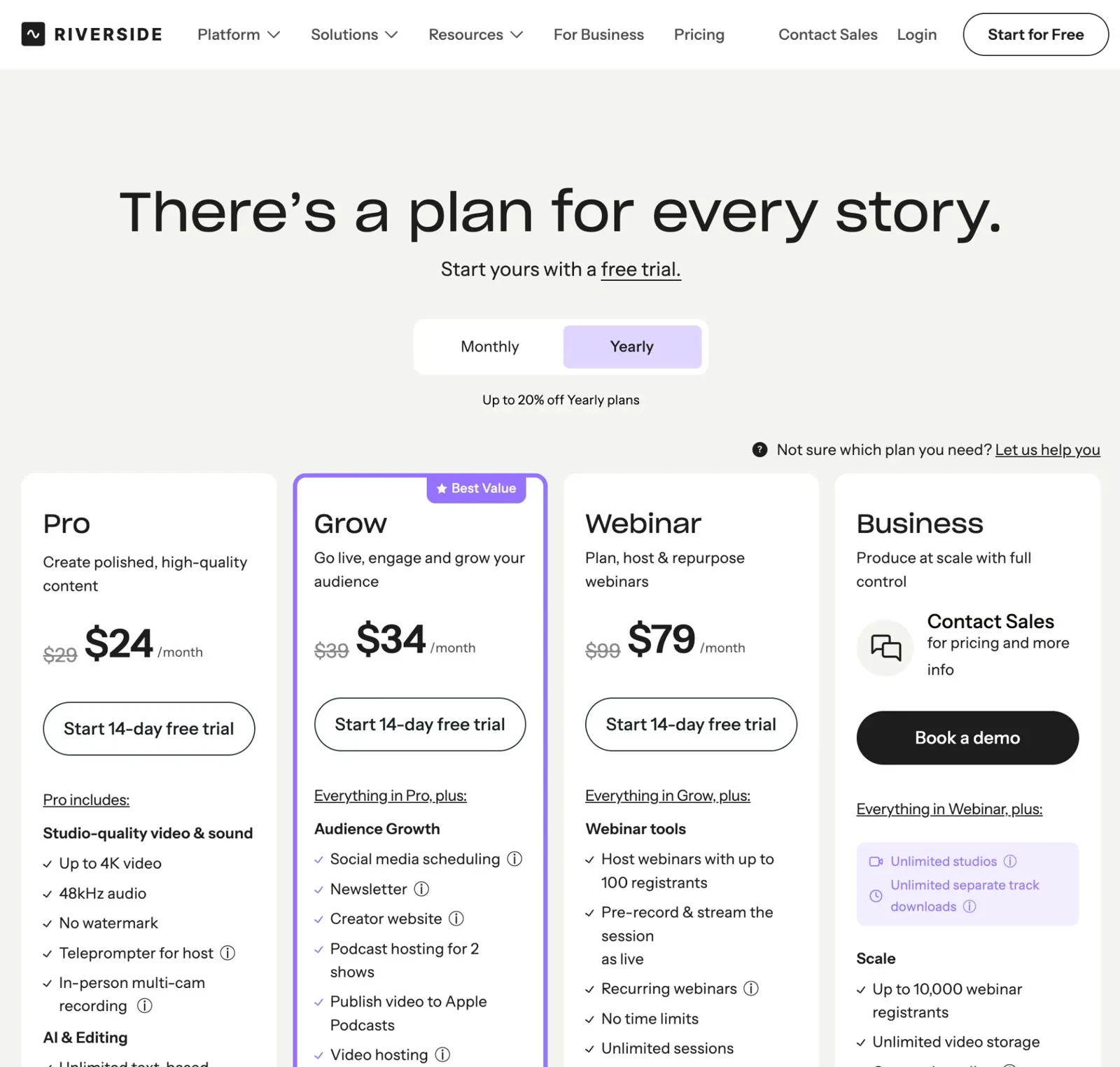 Riverside’s US pricing page on November 12, 2026, with yearly billing selected.
A few things on that table are easy to miss.
Download hours count the length of the session, not the number of people. Recording three people for an hour uses one hour of your allowance. That’s the same if you record eight cameras in one room. The allowance resets every month and doesn’t roll over.
Riverside’s “find my plan” quiz isn’t a great guide. When I took it, it recommended Business, probably because I said colleagues might join or because I used a business email. I think Pro or Grow fits most people, and I’d pick Grow for myself. Nobody I currently advise needs Business.
There’s a 14-day free trial on Pro, Grow and Webinar, and it needs a credit card. If you decide to sign up, you can start a Riverside trial with my link and use code Red11 for 20% off. Riverside’s help center says discount codes don’t work on Business plans.
Is Riverside still the best for remote recording?
Yes. This is the reason I recommend Riverside in the first place, and nothing in the 2026 changes made it worse.
Here’s the difference in plain terms. A meeting app like Zoom records the stream everyone is watching. If someone’s internet drops, the glitchy video and the dropped audio are what end up in your recording. Riverside records each person on their own computer and uploads those files while you talk, so a weak connection doesn’t wreck the quality. It also keeps a recording of the stream as a backup.
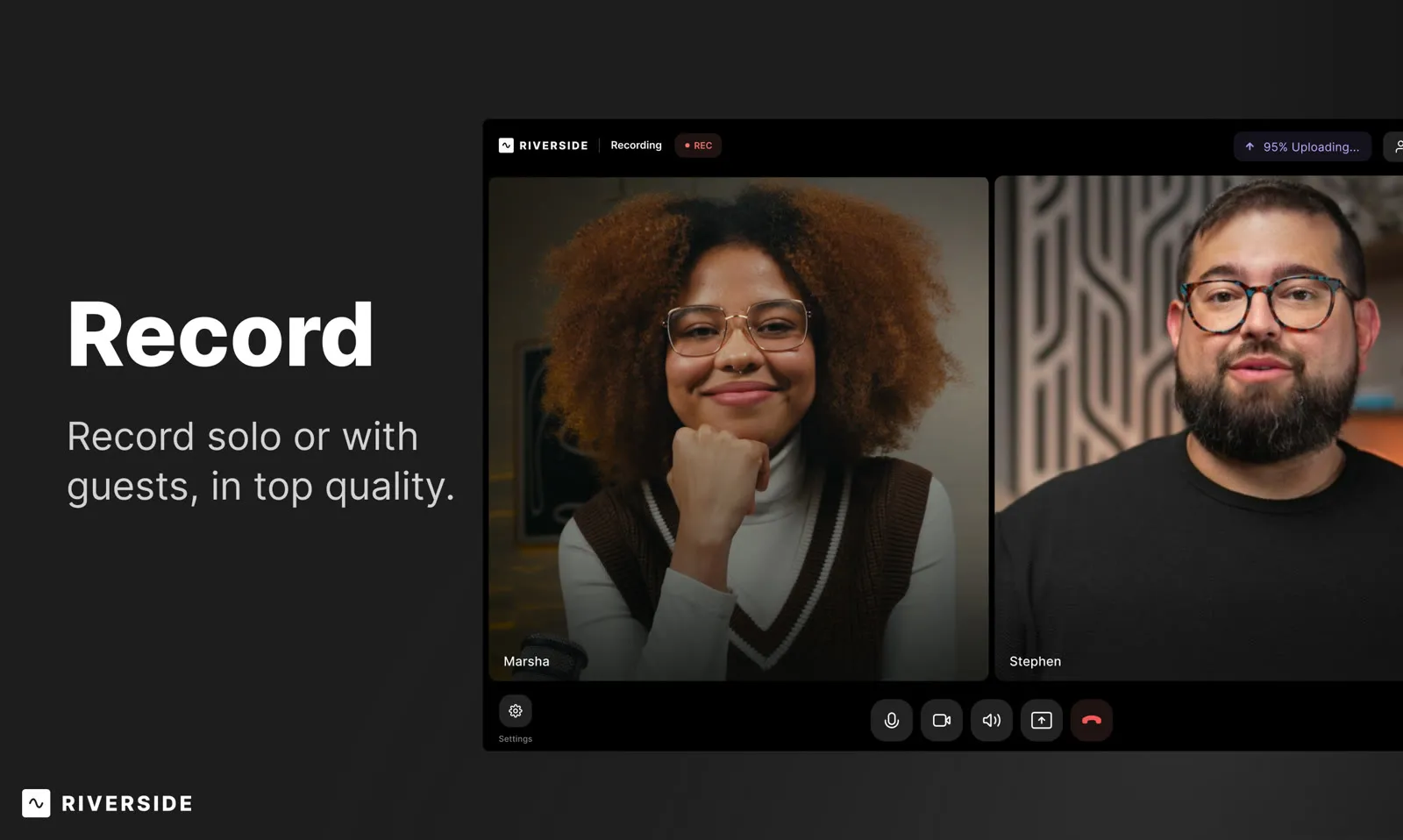 Image: Riverside
I had a client where both people on the call had bad internet during the recording. The stream looked like you’d expect from a rough video call. The Riverside files looked completely different. In the hundreds of recordings I’ve done on Riverside, local recording has failed once or twice. I’ll take those odds.
For guests with really bad connections, two settings have helped my clients a lot: turning on low data mode, and pausing video uploads until the recording is finished.
The other half of remote recording is the guest’s setup, and no software fixes that. Garbage in, garbage out. Before a recording, I tell guests to:
- Sit facing a window, or put a light in front of them (never behind)
- Raise the laptop on a few books so the camera is at eye level
- Keep the background simple
- Wear headphones
I also send a short prep sheet ahead of time and plan on spending the first 10 to 15 minutes of a session checking everyone’s setup. It saves hours in the edit.
If remote interviews are the main reason you’re looking at Riverside, this alone is worth the free trial. Use code Red11 for 20% off if you decide to stay.
The high-quality setup I give clients
For most podcasters, 4K recording on Riverside is plenty. For clients who want the best possible image, I suggest recording on the camera’s SD card and feeding the same camera into Riverside through an Elgato Cam Link at the same time. Riverside gives you the synced recording and the backup. The camera file gives you the best image, and you swap it in when you edit in Premiere Pro.
My own setup is a Sony FX3 into an Atomos Ninja, then into the computer through an Elgato 4K Cam Link. Going through the Atomos reduced lag when I recorded in 4K.
What is Riverside multicam, and who is it for?
In July 2026, Riverside added in-person multicam recording to its Mac app. You connect several cameras and microphones to one Mac, and Riverside records each person as their own synced audio and video track. It’s included on Pro and above.
Here’s how it works, from Riverside’s own setup guide:
- One Mac, several cameras and mics. USB cameras plug in directly. Cameras like a Sony or Canon connect through a capture card. Mics connect over USB or through an audio interface, one channel per person.
- Each camera is assigned to one person. If you have more people than cameras, the extra guests can be added with just a microphone.
- No switcher needed. You don’t need OBS or a hardware switcher. Riverside keeps the tracks separate and syncs them when you stop.
- Files upload while you record. Each track uploads progressively, so the files are on their way to the cloud before the session ends.
- 4K needs a test. In a 4K studio, the Mac app runs a roughly 5-minute test to check each camera for dropped frames. If it fails, you drop to 1080p, 24 fps or one fewer camera.
- Requirements: an Apple Silicon Mac (M1 or newer) on macOS 15 or later. Intel Macs can’t run the app.
- Remote guests can join too, but then everyone in the room needs headphones.
I’m getting ready to test this with a client over the next few weeks. Their goal is simple: get the files to me faster and make recording days easier for them. With a traditional in-person shoot, someone has to pull the cards from each camera and the audio recorder, copy everything and upload it before editing can start. With multicam, each person’s camera and mic is already a separate track in Riverside when they hit stop, and I can download it from my end.
One thing I’ll be checking: Riverside’s guide assigns each camera to a person. It doesn’t say whether you can add a wide shot that isn’t tied to anyone. If you plan a three-camera setup with a wide, test that before your first real recording.
Is the new Riverside editor any good?
It’s better than the old one, and it’s very approachable if you’re new to editing. It’s still not a replacement for Premiere Pro, and I’m not switching. I edit commercials and YouTube videos, not just podcasts, and for those I need a full editor. For a talking-head podcast rough cut, though, it holds up well, and it’s in the same league as Descript.
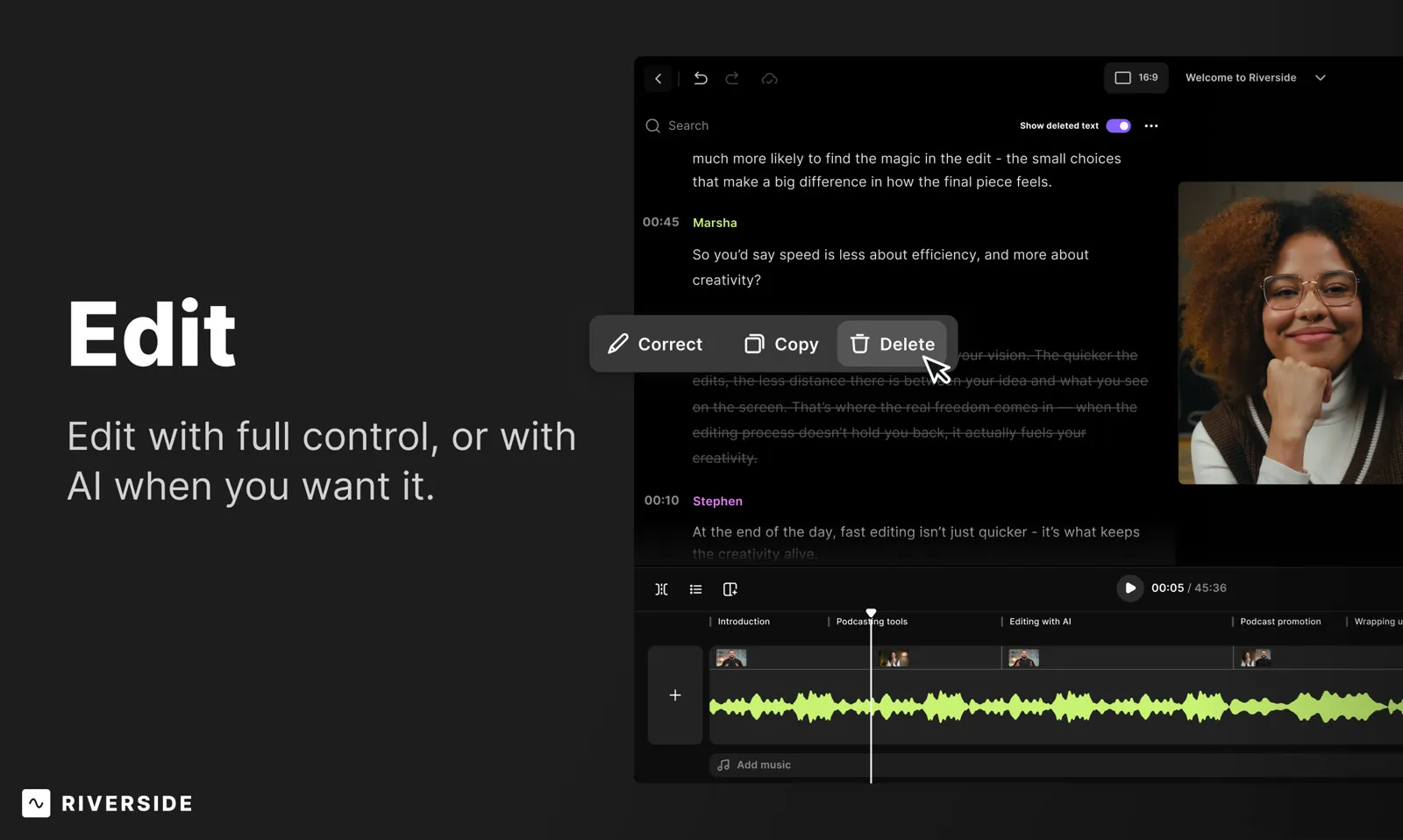 Image: Riverside
Here’s what stood out when I went through the new version.
Your video doesn’t actually look that bad. The editor plays back a down-sampled preview so it runs smoothly in the browser. New users see that preview and think their video “looks terrible.” The export is full quality. This is the most common panic I hear from clients.
Eye contact correction is usable. I recorded a teleprompter test on a 1080p webcam in bad lighting, then ran eye contact on it. It looked natural. My eyes still move a little, but I’d use that. It works best when you’re already looking close to the lens. On a guest who was looking well off camera, it felt a little odd.
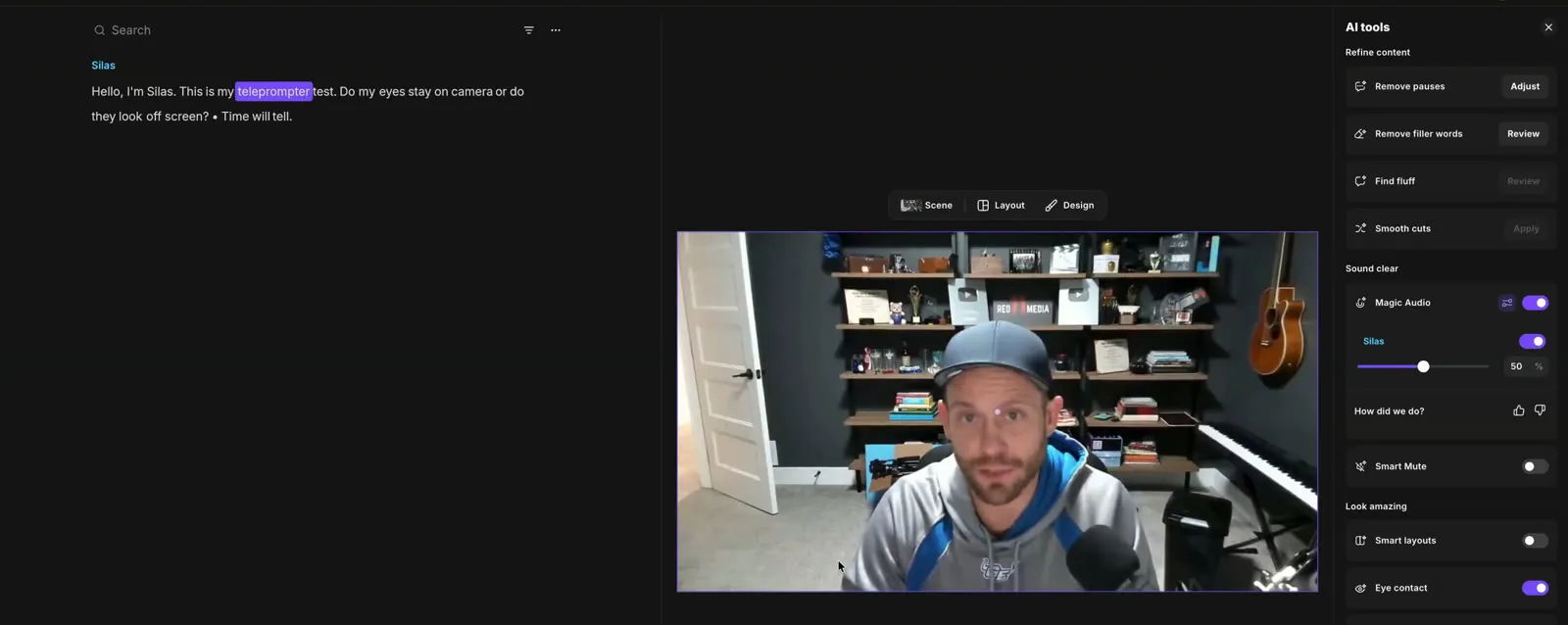 My teleprompter test in the new editor, with eye contact on and Magic Audio in the AI tools panel.
Magic Audio needs a lighter touch than you’d expect. At 100%, it was too strong on my voice. 25% was the sweet spot for my Rode Procaster running through a Zoom F3. On a guest with fan noise in the background, 50 to 70% worked better than 100%. My advice: start between 10 and 25%, stay under 50% unless you’re fighting real noise, and test it on each mic. I still prefer doing my own audio in Premiere Pro, but Magic Audio is a good option for anyone who doesn’t want to.
Watch the export audio settings. “Normalize audio” and “remove background noise” at export can over-process audio you’ve already cleaned up. If you used Magic Audio, preview before you stack more processing on top.
Remove pauses saves real time. On one episode, it cut about 10 minutes. The AI cuts sometimes clip the start or end of a word, so you still need to watch it back.
Smart layouts with “similar scenes” fix framing fast. You fix the framing once and apply it to every similar shot across the episode.
What are Riverside’s AI agents?
In October 2026, Riverside replaced its old AI Co-Creator with four agents you chat with inside the app:
- Producer: helps you prep the studio and gives suggestions while you record
- Editor: builds an edit plan and applies it
- Clipper: pulls short clips from your recording
- Marketer: writes show notes, thumbnails and social posts, and helps you publish
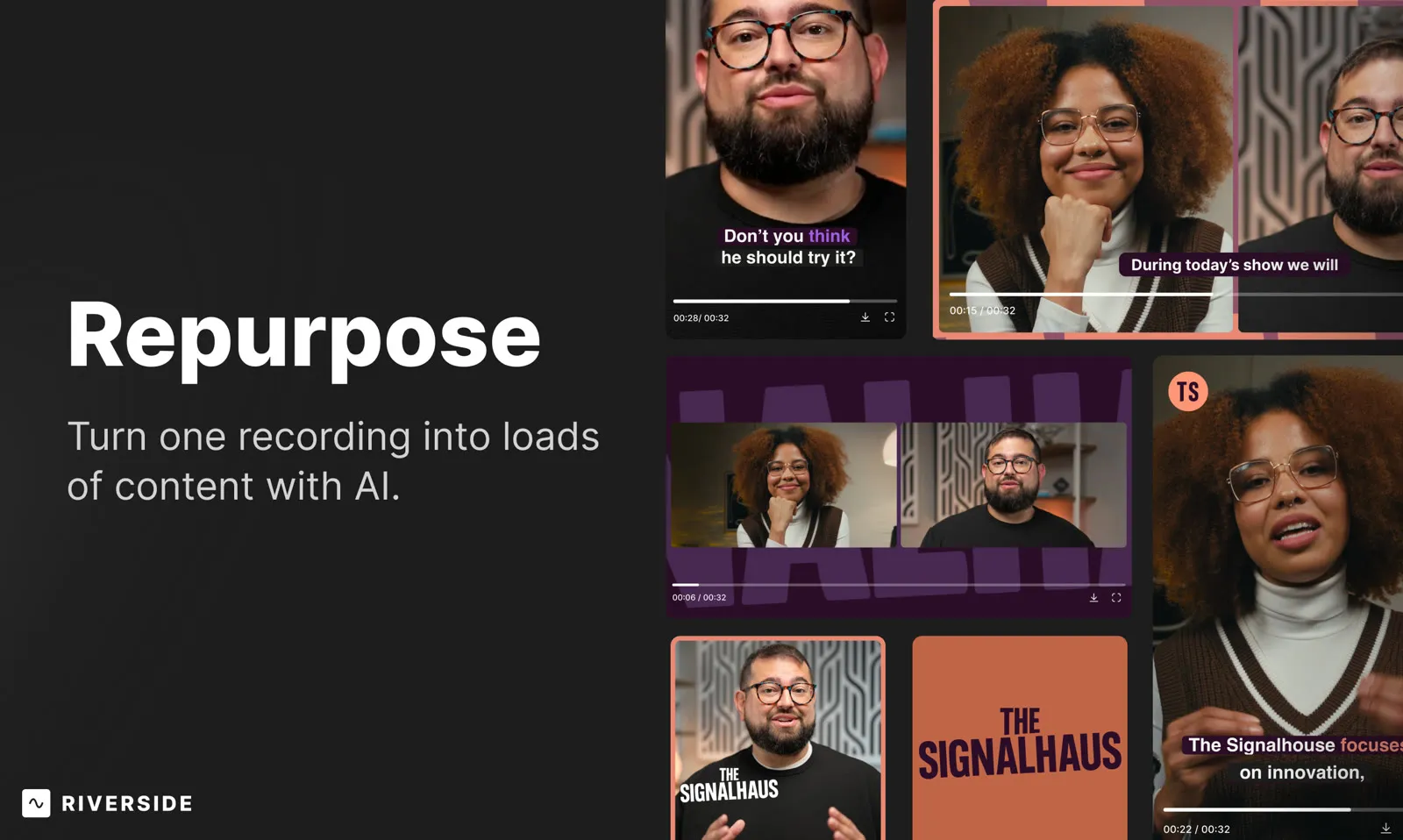 Image: Riverside
Chatting with the agents is free. When a task needs AI credits, the agent shows the cost and asks first.
The Editor agent was slow when I tried it, and it had to wait for the eye-contact version to finish processing before it could do anything. It also tended to hold shots too long. It’s useful for a first pass, but I wouldn’t hand it a full episode and publish what comes back.
What’s the catch with AI credits?
This is the part I’d want to know before I paid.
First, the good news: the features most podcasters use every week don’t use credits. Magic Clips and Magic Audio are credit-free, and so is chatting with the agents.
Riverside’s newer AI features do run on credits. Pro starts with 2,000. Once they’re used, you buy more. They don’t renew every month, so the 2,000 you start with are the 2,000 you get. I think a lot of creators are going to find that frustrating.
Here’s what things cost, from Riverside’s help center:
| Feature | Credits |
|---|---|
| AI B-roll | 100 per 5 seconds |
| AI translation | 100 per minute |
| AI Twin video | 200 per minute |
| Voice clone audio | 200 per hour |
| Smooth cuts | 2 per cut, per track |
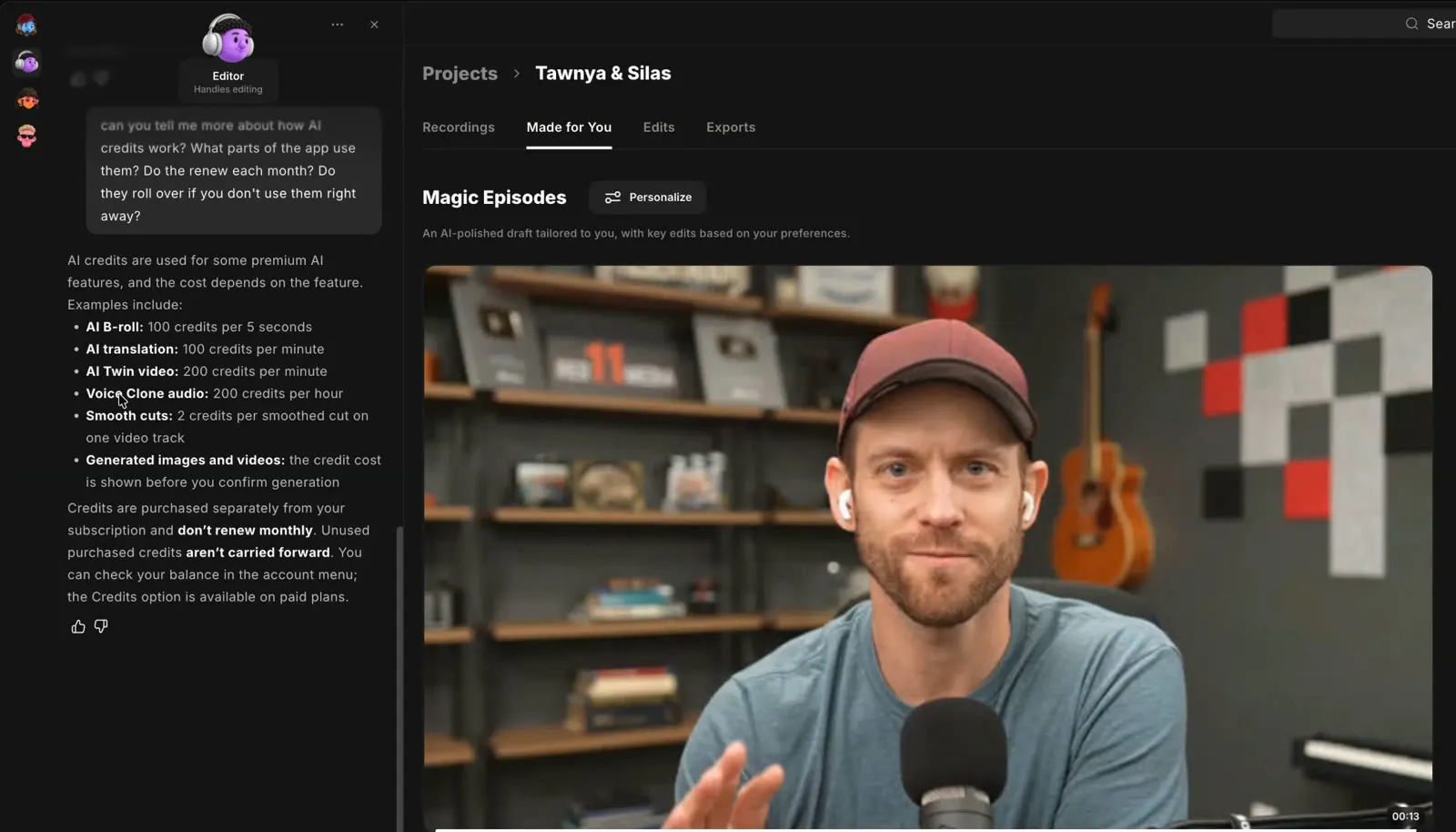 I asked Riverside’s Editor agent how credits work. Its answer matches the help center.
Do the math on AI B-roll and 2,000 credits is about 100 seconds of generated footage. My guess is Riverside is hoping people use the trial credits early and get inspired to invest in more credits after testing out all the credit-based features. Most of these features don’t fit my workflow, but the AI voice dubbing is the one I’m most interested in.
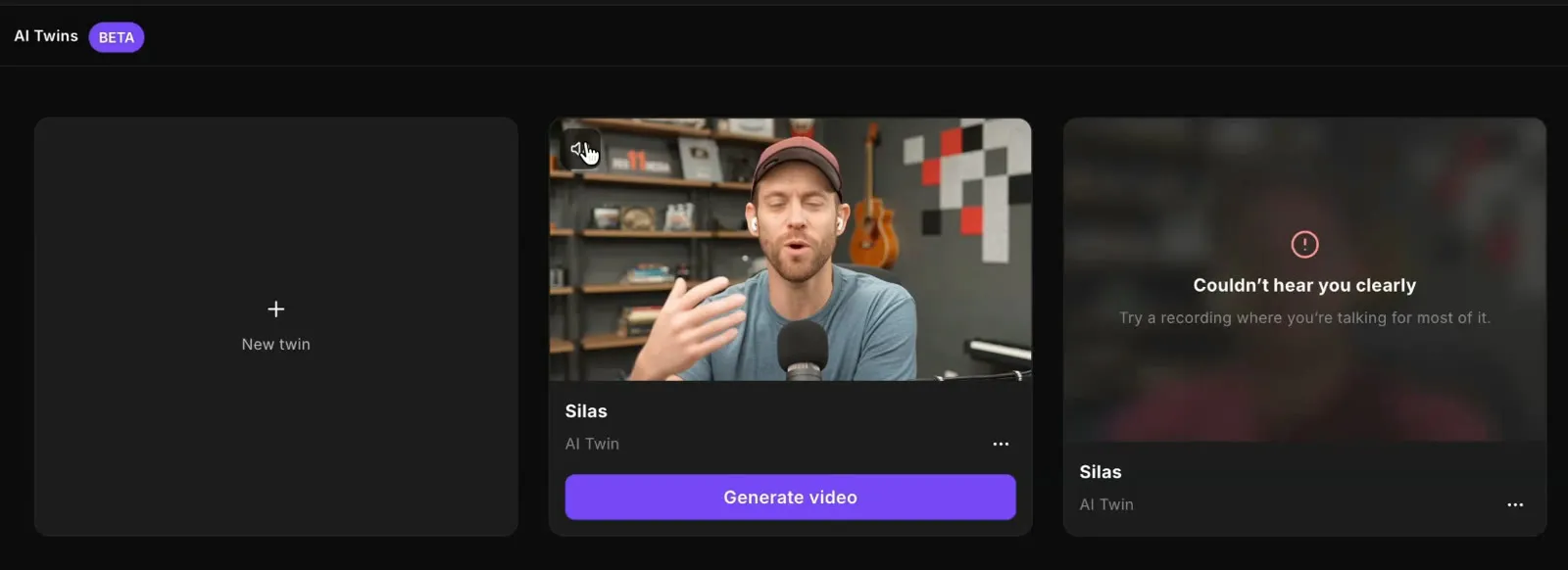
I made an AI twin of myself
I built an AI twin from a five-minute interview clip. The preview looked and sounded like me, but it didn’t seem real. It felt like AI. This may or may not be a problem depending on your content. One thing that could be a problem is that it reads your script exactly as written. It doesn’t catch typos, so one typo means paying to regenerate. I don’t expect to use it myself, but if you make a lot of short explainer videos, it’s worth a test with your starting credits.
Can Claude edit your Riverside videos?
Yes, on Grow and above. Riverside has an MCP connector that lets an AI assistant like Claude or ChatGPT work inside your Riverside account.
I connected Claude and asked it to edit a real episode, a conversation with voice actor Tawnya Rollingson. In one session it:
- Removed filler words and pauses on a light setting (it only shortened pauses longer than 1.5 seconds)
- Added captions and moved them to the lower third
- Fixed spelling mistakes in the transcript
- Cut back and forth between speakers, then raised the side-by-side shots from about 25% of the episode to about 55% when I asked
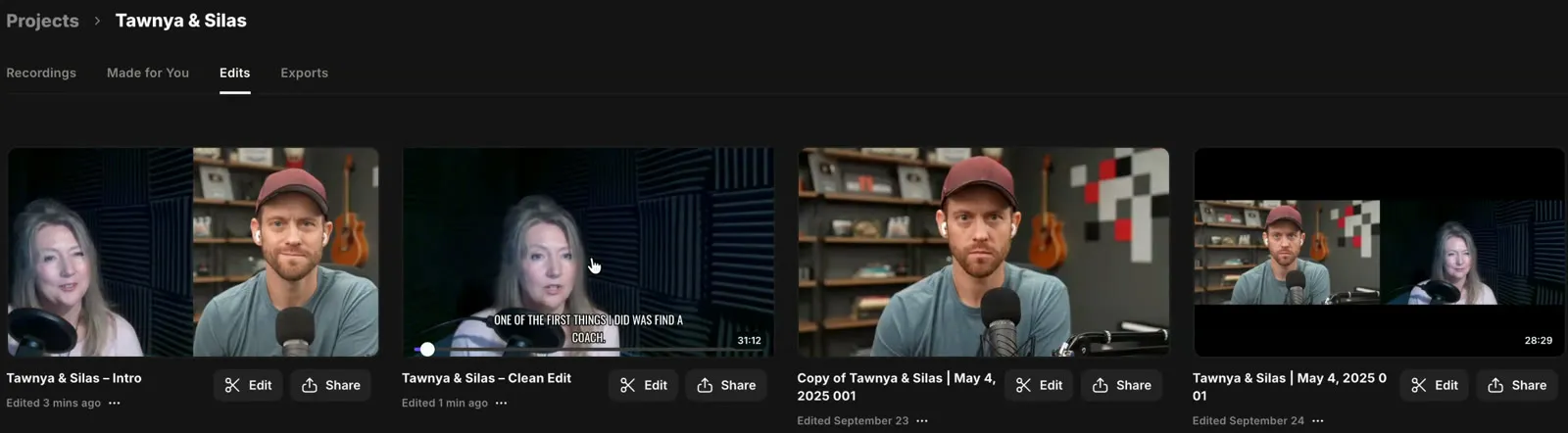 The clean edit and the intro edit Claude built in my Riverside project.
Honestly, Claude handled detailed requests better than Riverside’s own Editor agent did.
It has limits. Claude couldn’t insert a second recording into the edit (Riverside’s connector refused at the account level), so I added the intro myself. It also can’t see the video. When a guest’s framing was off, I had to send it a screenshot before it could fix it.
That’s the tradeoff of editing by chat. It’s fast, but you don’t see changes as they happen, so you review everything and send fixes back. For someone who doesn’t know video editing at all, that might be the easiest way in.
Is Riverside’s hosting and analytics worth it?
I love the dashboard. It puts Spotify, Apple Podcasts and YouTube numbers in one place, and clients often forget that their YouTube views count as podcast audience too. Seeing them together helps.
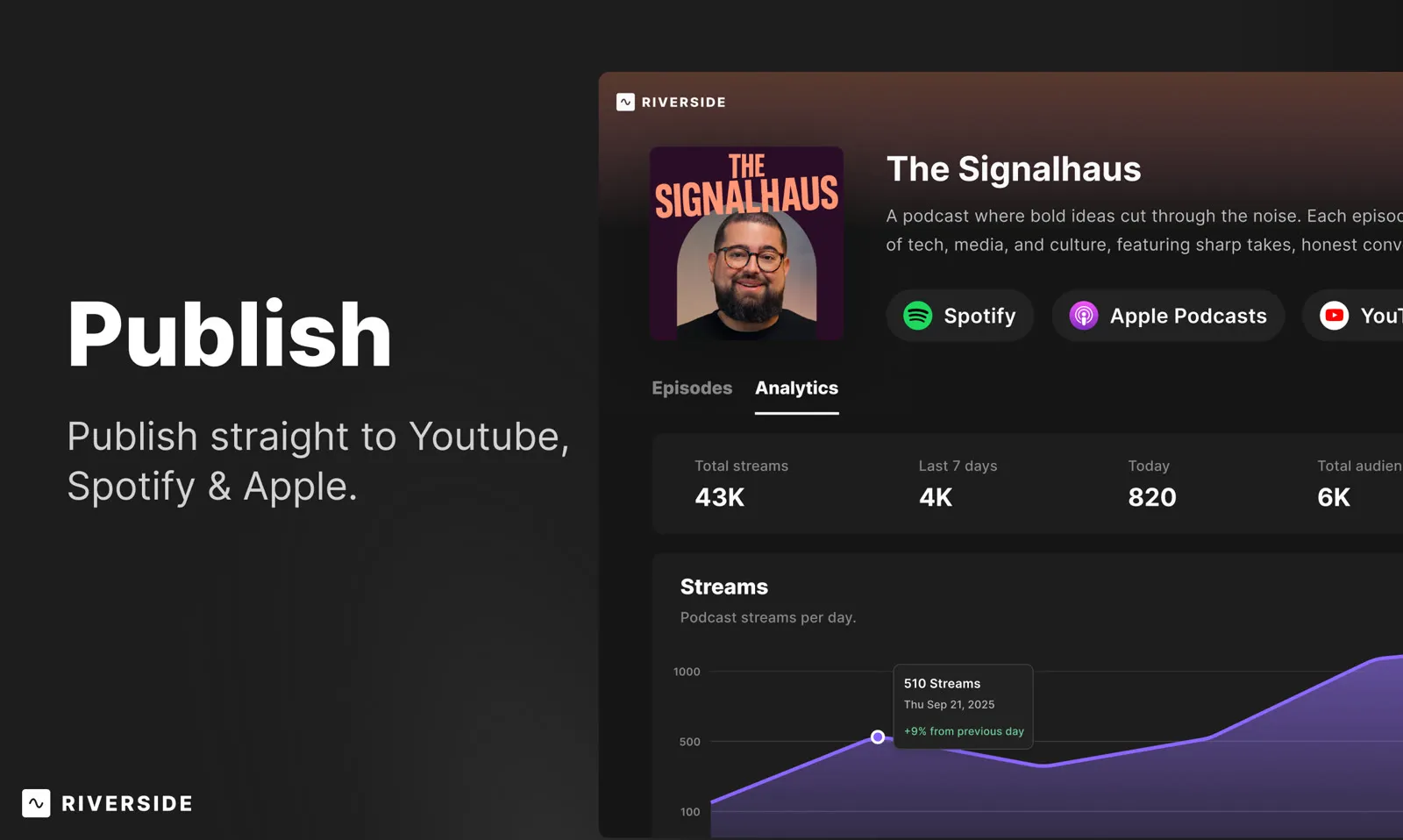 Image: Riverside
But publishing to Spotify and YouTube on your own is free. So I wouldn’t tell an existing client to pay for Riverside just for hosting. Where it makes sense is a new remote show that wants to record, edit and publish in one place.
What I’d like Riverside to fix
Timeline export is Business only. If you edit in Premiere Pro or Final Cut, the XML export is the feature you’d want, and it sits on the plan you have to call sales for. I’m grandfathered in from an older plan, so I still have it, but new users don’t. I’d love to see Riverside bring it back to Pro or Grow. On the lower plans, you can still download each person’s separate tracks and edit them yourself.
Video Enhancement is Business only too. When I clicked “Enhance video,” it asked me to upgrade. Riverside’s help center says it works on recordings up to 1080p.
Credits. See above. Worth knowing before you plan your workflow around AI B-roll.
Riverside vs Descript vs editing in Premiere Pro
I’ve compared Riverside and Descript side by side before (here’s the full comparison). The short version still holds:
| Riverside | Descript | Premiere Pro | |
|---|---|---|---|
| Best at | Recording remote guests, live streaming | Timeline editing, teams | Full control for any kind of video |
| Guests with bad internet | Records locally, uploads high quality | Weaker | Doesn’t record |
| Editing style | Text-based, plus AI agents | Text-based, stronger timeline | Timeline |
| Learning curve | Low | Low to medium | High |
| Export to Premiere | XML on Business; separate tracks on all paid plans | Timeline export | Not needed |
When I recorded on Riverside and Descript at the same time, the 4K export quality was nearly identical. Descript’s files were ready to edit and exported faster. Riverside wins on recording and on guests with poor connections.
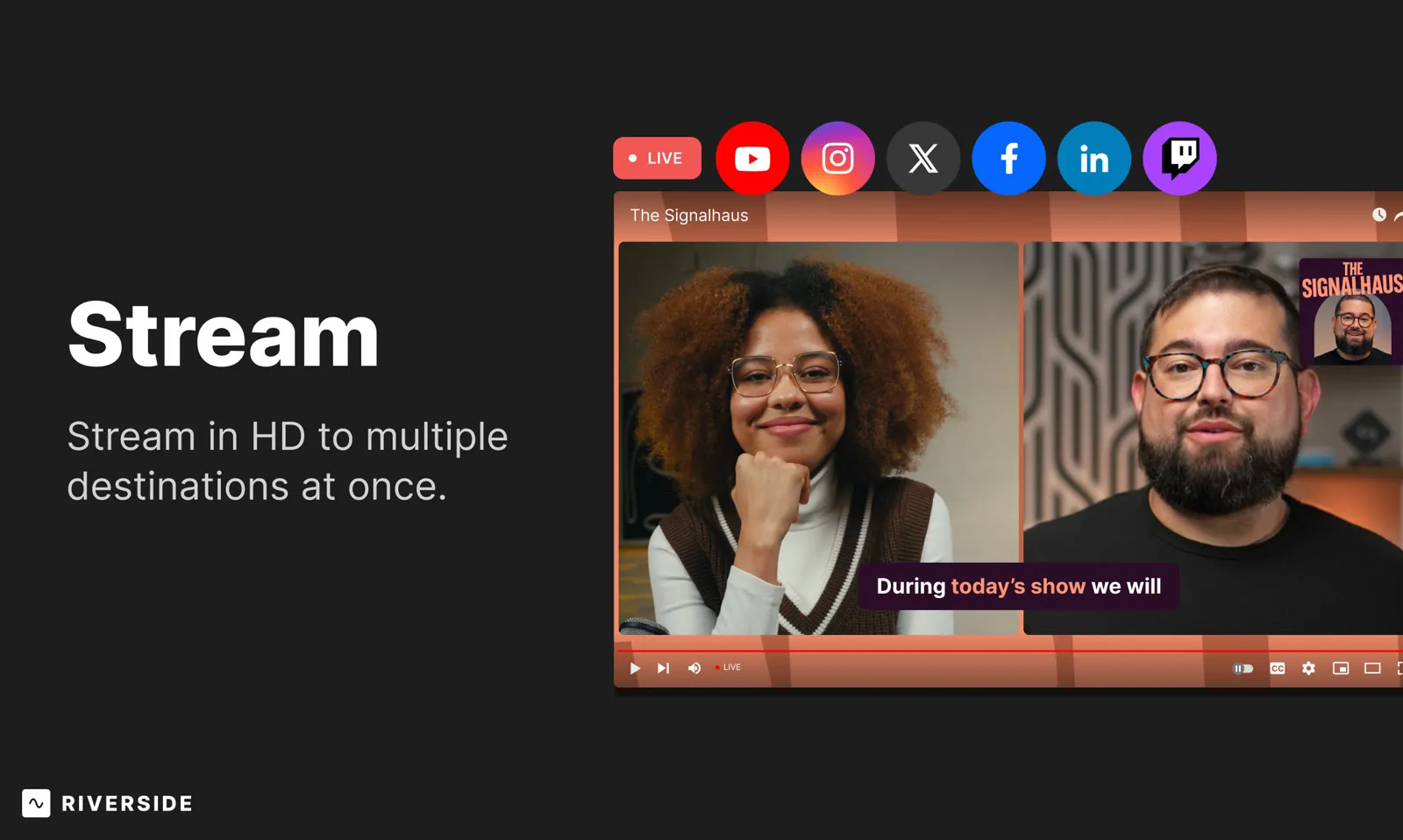 Live streaming to several platforms at once is on Grow and up. Image: Riverside
So, which Riverside plan should you pick?
If you record remote guests and edit the show yourself, pick Pro. You get 4K, the editor, Magic Audio and eye contact, and 15 hours of separate-track downloads.
If you also go live, or you want to edit by chat with Claude, pick Grow. That’s the one I’d choose for myself.
If you run webinars for leads, pick Webinar.
If you need XML export to Premiere for every episode and have a team, talk to Riverside about Business. For everyone else, download the separate tracks on Pro or Grow and edit them yourself.
If you only record solo videos and never have guests, you might not need Riverside at all. Descript or your camera and an editor may be enough.
Is the new Riverside better? Yes. Is it perfect? No. But for remote recording, it’s still the tool I recommend to clients, and the one I use myself.
If you want to try it, you can start your free trial here and use code Red11 for 20% off. It helps support Red 11 Media and doesn’t cost you anything extra. For the bigger picture on setting up a remote show, start with my guide to recording a podcast remotely, or see how Riverside stacks up against Zoom and the rest of the best podcast recording software.
Let me know if you have any questions.
Silas
Frequently asked questions
Is Riverside worth it in 2026?
Yes, if you record remote guests. Riverside records each person on their own device and uploads high-quality files, so a bad connection doesn't ruin the recording. The new editor and AI tools are better than last year, but they aren't a replacement for Premiere Pro, and the AI credits run out.
Which Riverside plan should I get?
Most creators should pick Pro or Grow. Pro ($24 a month billed yearly) covers 4K recording, the editor, Magic Audio and in-person multicam. Grow ($34 a month billed yearly) adds live streaming, the Riverside MCP connector and more download hours. Very few people I work with need Business.
Do Riverside AI credits renew every month?
No. Pro starts with 2,000 AI credits, and once they're used you buy more. Credits pay for things like AI B-roll, translation, AI Twin video and smooth cuts. Magic Clips and Magic Audio don't use credits, and chatting with Riverside's agents is free until a task needs credits.
Can Riverside export an XML to Premiere Pro?
Yes, but only on the Business plan. The export carries over cuts, filler-word and pause removal, chapters and comments, but not transitions, animations or overlays. On Pro and Grow you can still download each person's separate tracks and edit them in Premiere Pro yourself.
Does Riverside multicam work with more than one camera in the same room?
Yes. On Pro and above, the Riverside Mac app can record several cameras and microphones in one room, each assigned to one person, as separate synced tracks. It needs an Apple Silicon Mac on macOS 15 or later, and 4K multicam asks you to run a short performance test first.