
To add a manager to your Facebook page, navigate to your page, click Settings, select Page Roles, type the person's name or email, choose their role (Admin, Editor, Moderator, Advertiser, or Analyst), and click Add. Each role grants different levels of access. Editors can post and respond, Admins control everything, while Moderators handle engagement only. Choose roles based on how much access each team member genuinely needs.
As you start to grow your team or hire an outside social media manager, you will need to add them to your Facebook page. But, how exactly do you do this? That is a great question, and we are going to walk through together step-by-step.
If you've ever felt like there are too many buttons on the back end of your Facebook page, you aren't alone. As the number of users grew on the platform, there was an increased need for functionality, which led to more buttons. This may be one of the reasons you're bringing someone new on to help manage your account.
1. Navigate To Your Page
To get started, you will navigate to your Facebook page. Facebook.com
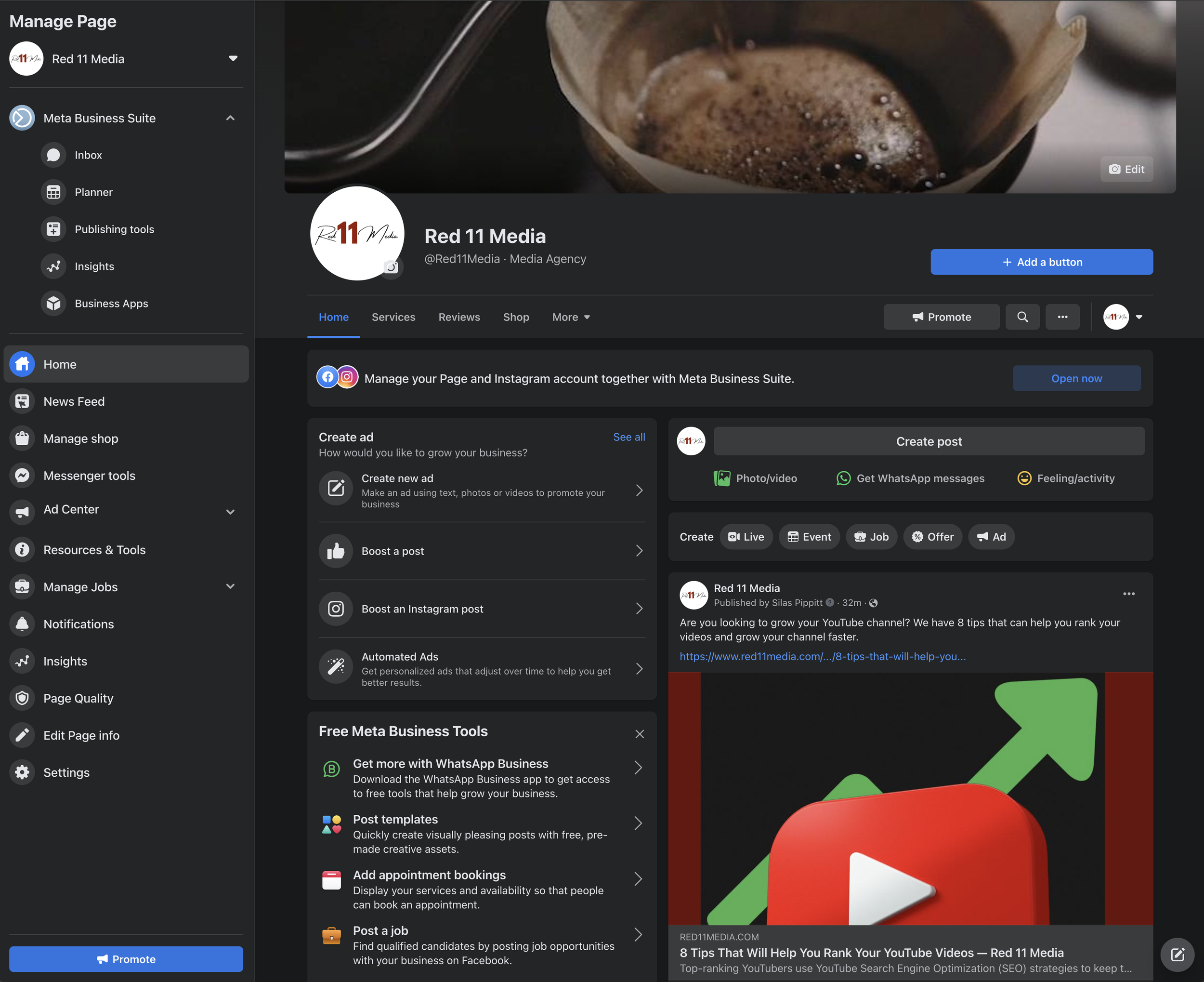
2. Click Settings
Then click on Setting at the bottom of the left menu.

3. Choose Page Roles
This will take you to a new page where you'll have multiple options in the left menu for how you can mange your page. You will want to navigate to Page Roles.
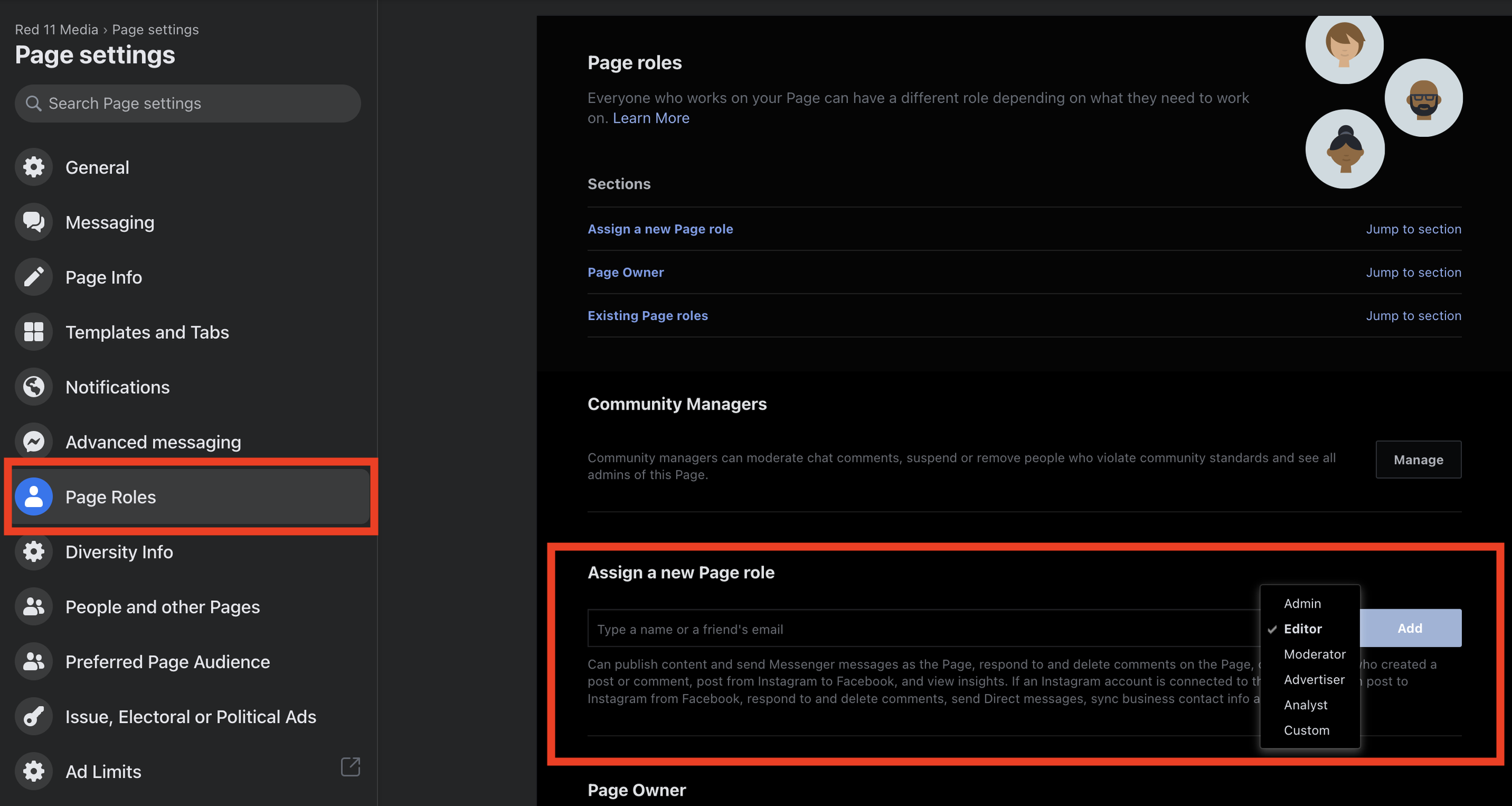
4. Add A Person and Assign Them A Page Role
Once you have selected page roles, you will need to type in the name of the person you want to manage the page. If you can't find them by their name, you can try using the email address associated with their Facebook account. After locating their profile in this search bar, you'll choose their page role and click Add. This will send an invite to the person you want to manage your Facebook page.
Page Roles According To Facebook
What is the best page role for your manager? That depends on how much access you would like them to have. Below we've pulled the descriptions of the page roles from Facebook for you to review. Only page admins can assign roles, so if you're not an admin, it is important to reach out to an admin to get started.
"Admin - Can manage all aspects of the Page. They can publish and send Messenger messages as the Page, respond to and delete comments on the Page, post from Instagram to Facebook, create ads, see who created a post or comment, view insights, and assign Page roles. If an Instagram account is connected to the Page, they can post from Facebook to Instagram, respond to and delete comments, send Direct messages, sync business contact info and create ads.
Editor - Can publish content and send Messenger messages as the Page, respond to and delete comments on the Page, create ads, see who created a post or comment, post from Instagram to Facebook, and view insights. If an Instagram account is connected to the Page, they can post to Instagram from Facebook, respond to and delete comments, send Direct messages, sync business contact info and create ads.
Moderator - Can send Messenger messages as the Page, respond to and delete comments on the Page, create ads, see who created a post or comment, and view insights. If an Instagram account is connected to the Page, they can respond to Instagram comments, send Direct messages and create ads.
Advertiser - Can create ads, see who created a post or comment, and view insights. If an Instagram account is connected to the Page, they can create ads.
Analyst - Can see which admin created a post or comment and view insights.
Custom - These people have a combination of permissions. Go to Business Manager to manage them."
Use Cases For Page Roles
We find that it is best to have clear-cut reasons for adding people to specific roles on your page. Understanding some general use cases can help you decide which role to choose when bringing on collaborators to your page.
Admin - This is usually best suited for someone you trust implicitly with your channel. Either the social media manager you've hired in-house, or an outside social media manager with a proven track record could be assigned this role. It is especially important to have admin access if you are going to manage any of the page settings or be in charge of adding new contributors.
Editor - This page role is best for anyone who is going to be posting content and who doesn't need to manage other contributors or settings. This is our recommendation for third-party vendors or outside social media managers because it gives them enough flexibility to help you grow and mitigates the risk of them changing something in settings you don't want them to.
Moderator - If your page receives a lot of comments, messages, or other engagement, you might want to add a moderator. Unlike Admin and Editors, moderators can't add content. Instead, they can only respond to and delete comments. This role can also create ads for your channel, but we recommend a higher level of access for your Facebook Ads Manager. A higher level of access will usually streamline the ads process for you and allows the moderator to ensure the ad content is better integrated with the organic page content.
Advertiser - This role is best if you already have an established advertising workflow and are looking to add a new member to assist with that workflow. If you are setting up ads for the first time, you will want the person in charge to have admin access to the account.
Analyst - This role can be very useful if you want to better understand how your posts are performing. Allowing someone to review your analytics and who posted what and when allows you to gain qualitative and quantitative insight into your channel. If you have a smaller channel or a smaller team, this role may not be as useful to you though.
Growing your Facebook presence is a great way to increase sales and grow your business. As you grow your team, understanding the Facebook page roles can help you place team members at the right permission level to help you grow. If you have specific questions about growing your Facebook page or are interested in hiring a social media manager, check out our offerings page, or sign up for a discovery call today.
Frequently Asked Questions
-
Navigate to your Facebook page, click Settings in the left menu, select Page Roles, then type the person's name or email address linked to their Facebook account. Choose the appropriate role from the dropdown (Admin, Editor, Moderator, Advertiser, or Analyst) and click Add. Facebook then sends them an invitation to accept the new role and access your page.
-
Facebook offers six page roles with varying access levels. Admins control everything including settings and other roles. Editors can post content, respond to messages, and create ads. Moderators handle comments and messaging only. Advertisers can create ads and view insights. Analysts can only view insights and see who posted what. Custom roles allow tailored permission combinations through Facebook Business Manager.
-
For most third-party social media managers or external agencies, Editor is the safest role. Editors can publish content, respond to comments, send messages, and create ads without accessing sensitive page settings or assigning new roles. Admin access should only be given to highly trusted in-house staff or long-term agency partners with a proven track record managing your account.
-
Yes, page admins can remove anyone from a Facebook page at any time. Navigate to Page Settings, click Page Roles, locate the person you want to remove, click Edit next to their name, and select Remove. The change takes effect immediately, instantly revoking their access to post, comment, message, or manage any aspect of your Facebook page.
-
No, adding someone as a manager to your Facebook page only grants them access to that specific business page, not your personal Facebook profile. They can see your name in the page admin list, but their role gives them no visibility into your personal posts, friends, messages, or account settings. Page management and personal accounts remain completely separate.