
How to Add a New Mailbox on iPhone iOS 18 (iCloud, Gmail, Yahoo & Outlook)
To add a new mailbox on iPhone iOS 18, open Settings, tap Apps, select Mail, then go to Accounts and Add Account. Choose your provider (iCloud, Gmail, Yahoo, Outlook, or Other), sign in with your email and password, and select which data to sync including Mail, Contacts, Calendars, and Notes. Tap Save to complete setup. Your new mailbox is then accessible directly through the Apple Mail app.
If you're juggling more than one inbox or email address, it can be challenging to keep track of multiple email apps—especially for business users and anyone managing personal and professional email. Fortunately, your iPhone and Apple Mail make it super simple to add and manage new mailboxes. Whether you're setting up iCloud, Gmail, Yahoo, or Outlook, we've got you covered with the correct steps in this step-by-step guide.

📱 Why Add a Mailbox to Your iPhone?
Adding the Apple Mail mailbox on your iPhone lets you:
Stay synced across devices and monitor more than one email address at a time.
Access all your important messages in one place
Easily switch between personal and business accounts
Use built-in features like notifications, filters, and VIP inbox
🛠️ How to Add a New Mailbox on iPhone
✅ Step 1: Open Settings
Locate and tap the Settings app on your iPhone.

Can’t find your settings?
If you can't find it, you can swipe down from the top of the page and search for Settings.
✅ Step 2: Navigate to Mail > Accounts > Add Account
Scroll down, tap Apps, and then find Mail.
Then go to Accounts > Add Account.
If you are having trouble finding Mail in your settings, you may need to install the app. You can find it on the Apple App Store by searching for Mail. Once installed, you can navigate back to settings to complete these steps.
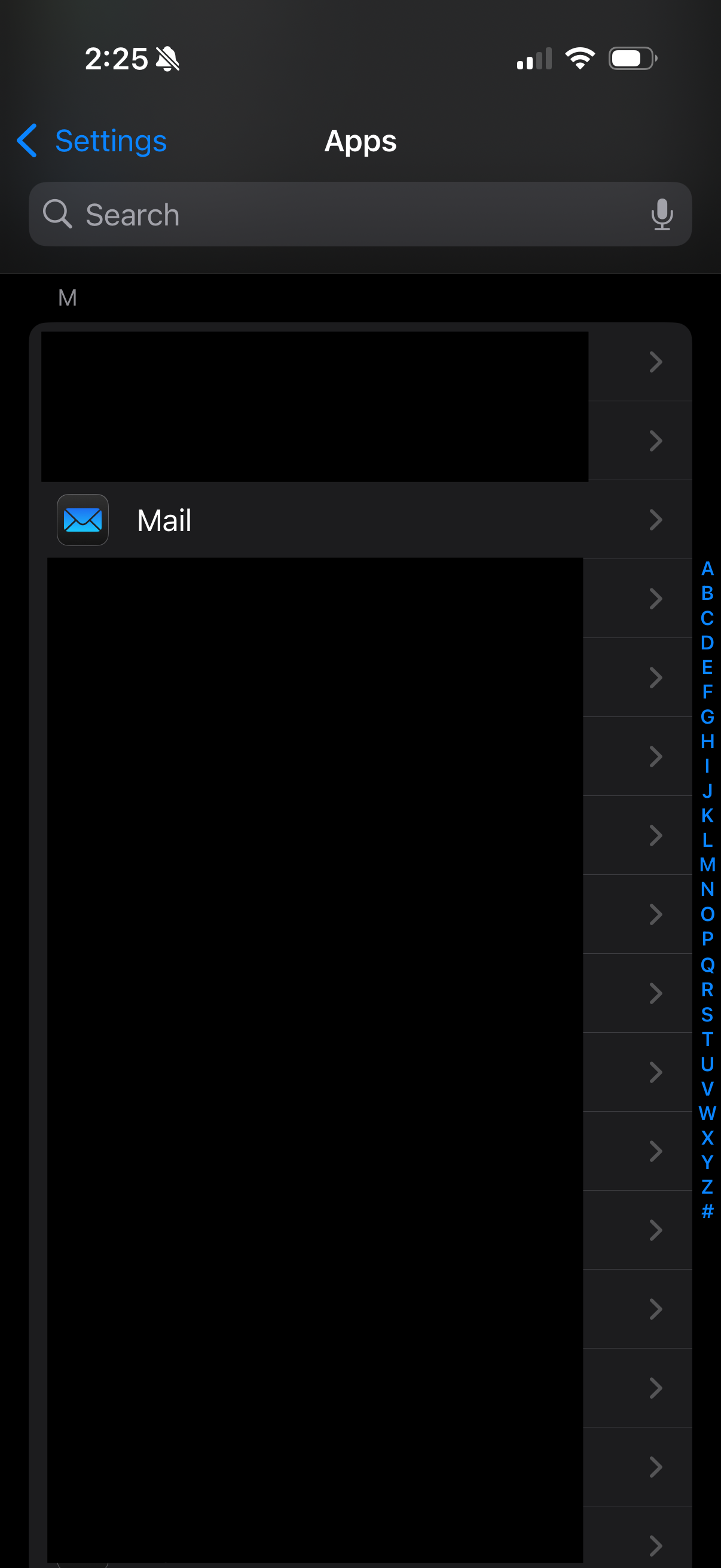
Use the alphabet on the right side to quickly navigate to your Mail App settings.

You can find the Mail App on the Apple App Store by searching for Mail.
✅ Step 3: Choose Your Email Provider
At the top of the screen, click Mail Accounts, then click Add Account. Select your mailbox provider:
iCloud
Gmail
Yahoo
Outlook
Or tap “Other” for custom domains
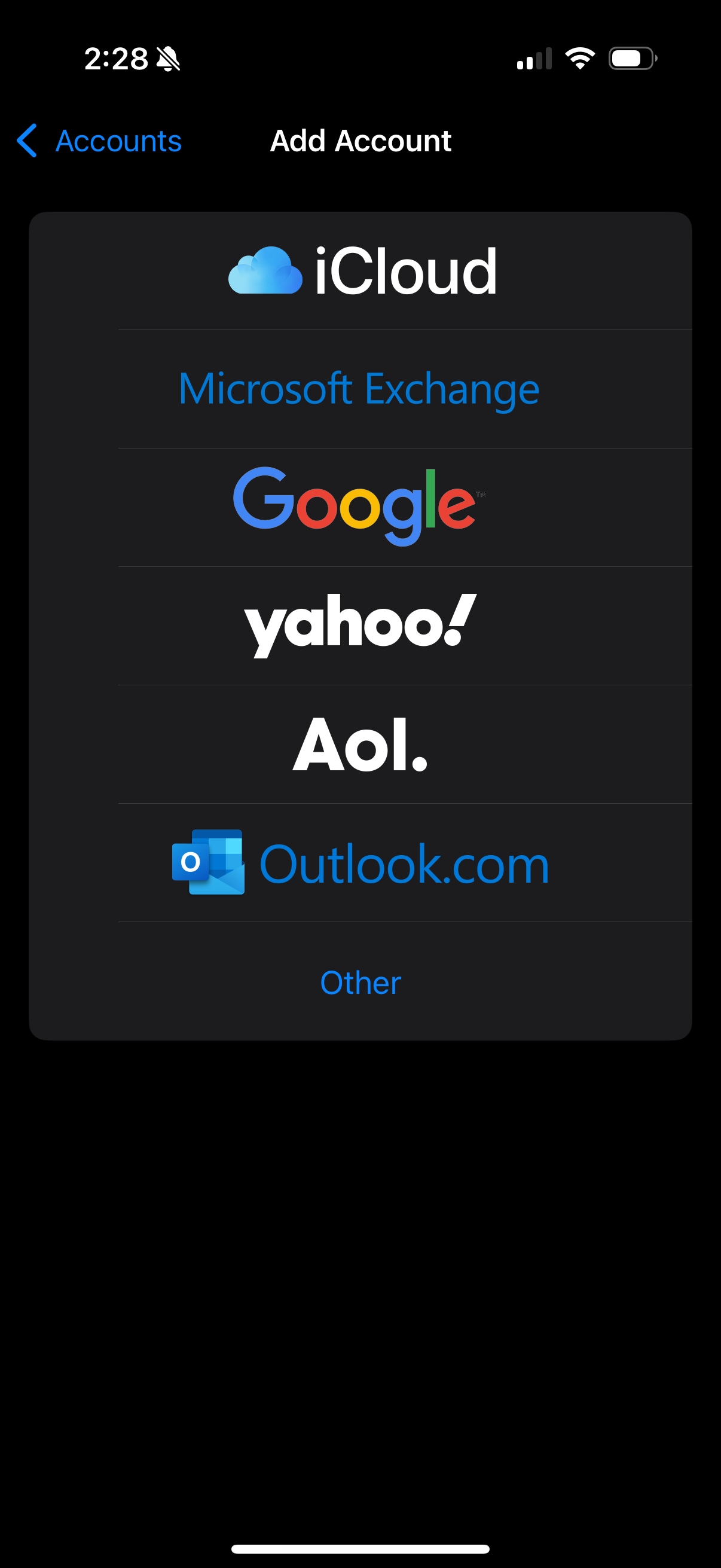
Not finding your email provider?
You can always click “Other” to add a custom email provider.
✅ Step 4: Sign In to Your Email Account
Enter your email address and password, and follow the screen prompts.

Login Redirects?
Some providers (like Gmail or Outlook) may redirect to a secure login page.
✅ Step 5: Select What You Want to Sync
Choose the data to sync with your iPhone:
Mail
Contacts
Calendars
Notes
Toggle on what you want, then tap Save.

PRO TIP
If you're not sure what settings you want turned on, you can always go back and change these settings later.
🎉 Your new mailbox is now active and ready to use in the iPhone Mail app!
📂 Bonus Tips: To Get The Most Out of Apple Mail
From the Mail App home page, you can see a list of Mailboxes and all your email folders
Use the “All Inboxes” view to see messages for every email address inbox at once.
Change your Email Per Account in the Signature Section of the Mail App Settings.
Set a default account:
Settings > Mail > Default Account

The All Mail tab shows you emails from every account you have added.

Change your Default Mail App in settings to show your most important mail in the Mail App first. Just click the “Primary” tab in All Inboxes to use this feature.

📬 Wrapping Up
Adding a mailbox to your iPhone takes just a few minutes and helps you stay organized and avoid juggling multiple email apps. Whether you're managing business communications or staying connected with loved ones, this simple setup makes a huge difference.
Frequently Asked Questions
-
To add an email account on iPhone iOS 18, open Settings, scroll to Apps, tap Mail, then Accounts, and select Add Account. Choose your email provider (iCloud, Gmail, Yahoo, Outlook, or Other for custom domains), enter your credentials, and follow the on-screen prompts. Finally, choose which data to sync, including mail, contacts, calendars, and notes, then tap Save to finish.
-
Yes, the Apple Mail app supports multiple email accounts simultaneously. You can add as many accounts as needed, including iCloud, Gmail, Yahoo, Outlook, and custom domain emails. Each account appears separately within the Mail app, but the All Inboxes view combines messages from every account in one unified feed. This makes managing personal and business emails significantly easier.
-
Most Gmail connection issues on iPhone occur due to two-factor authentication or incorrect password entry. To resolve this, enable two-factor authentication on your Google account, then generate an app-specific password through Google's security settings. Use this app password instead of your regular password when adding the account on iPhone. Outdated iOS versions or VPN settings can also occasionally cause connection problems.
-
To change the default email account on iPhone, open Settings, tap Apps, select Mail, scroll to Default Account, and choose your preferred email account. The default account is used automatically when sending emails from other apps like Photos, Notes, or Safari. Setting the most-used account as default streamlines daily workflows and reduces the need to manually switch accounts when composing messages.
-
Yes, deleting an email account from iPhone only removes it from the device, not from the email provider's servers. To delete an account, go to Settings, tap Apps, select Mail, then Accounts, choose the account, and tap Delete Account. All messages remain accessible through web browsers or other devices logged into that account. You can re-add the account anytime to restore access on iPhone.